CareRecorda
Guides · Manager access
More guides, and these with bigger pictures, at carerecorda.co.uk/help
Allocate checks
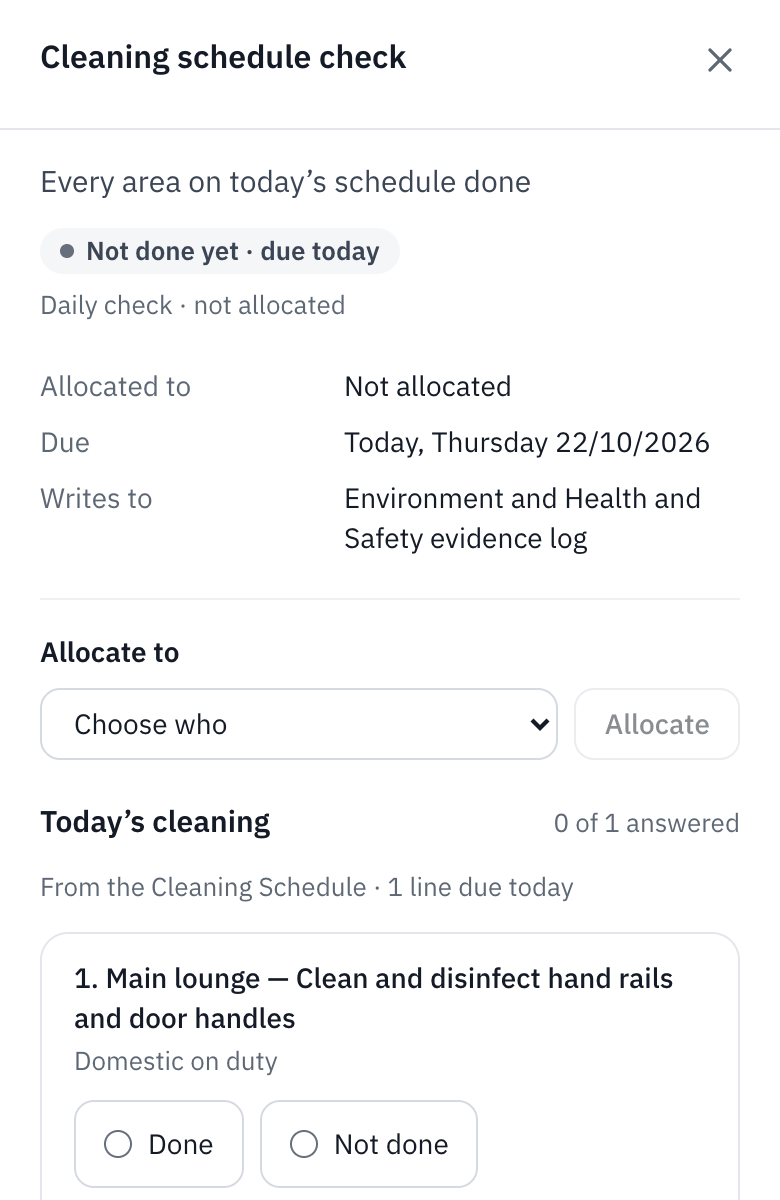
- Open Checks and tap Do it beside the check.
- Under Allocate to, choose a person, a level or a role.
- Tap Allocate. It shows on their Today from then on.
Sign off an Action
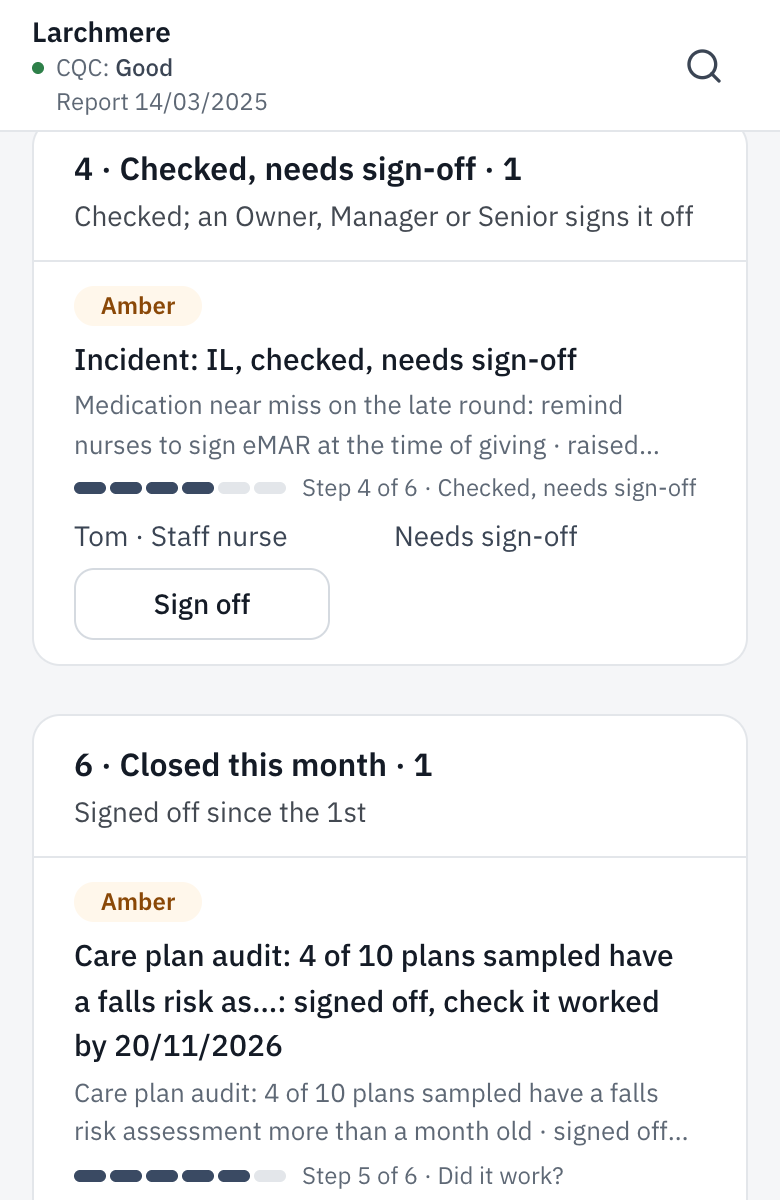
- Actions waiting for you show on Today under Needs your sign-off, and on Actions under Checked, needs sign-off.
- Tap Review or Open, and read what was done and how it was checked.
- Tap Sign it off.
- You can’t sign off your own work unless you’re the Owner.
Invite someone
- Open Settings, then Team & access.
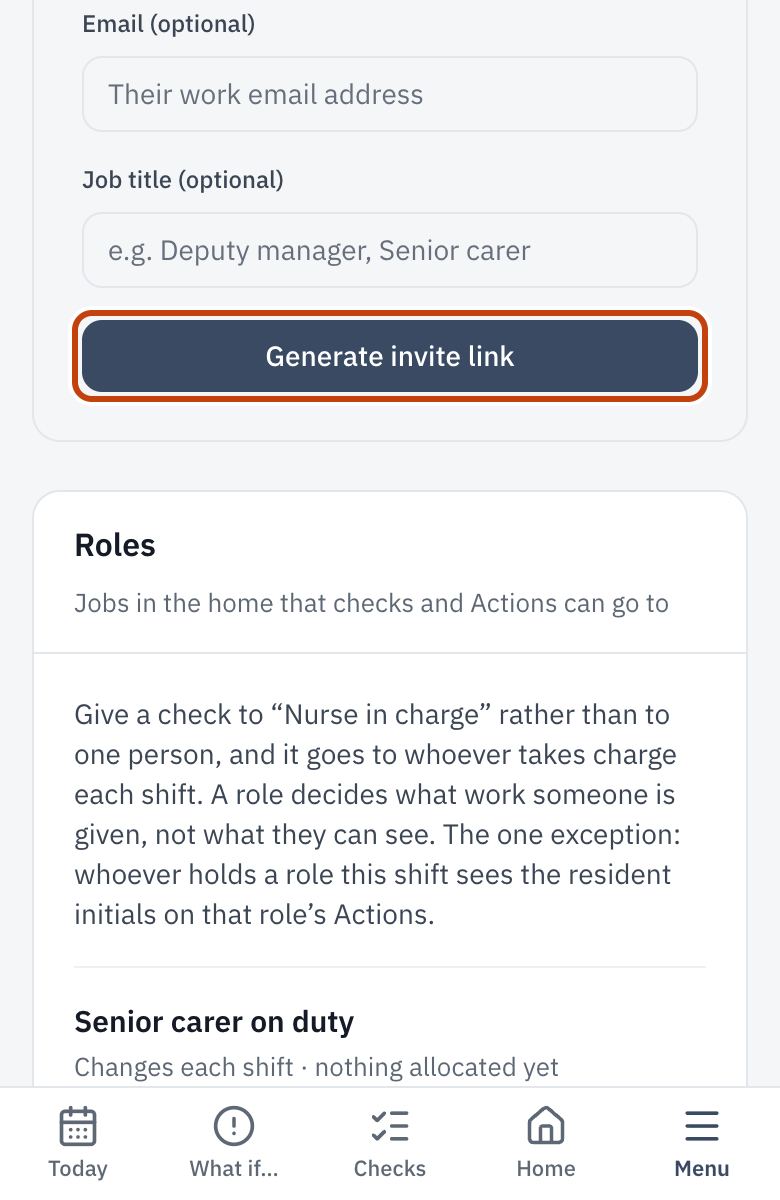
- Under Invite a team member, pick their access level. Staff suits most care staff. A Manager can invite at Staff, Senior or Reader; only the Owner can invite a Manager.
- Add their name, email and job title if you like. With an email, the invite goes to them.
- Tap Generate invite link. Copy it and send it yourself if you didn’t add an email.
An invite lasts 7 days.
See how new staff are getting on
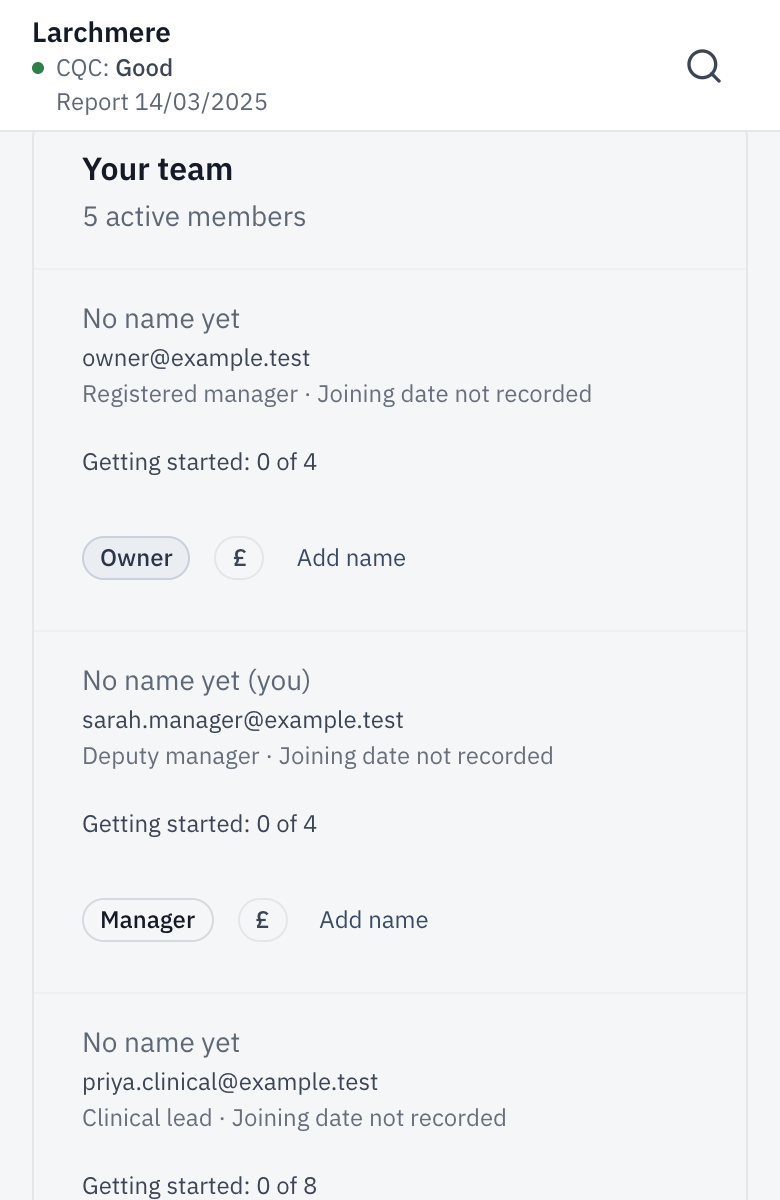
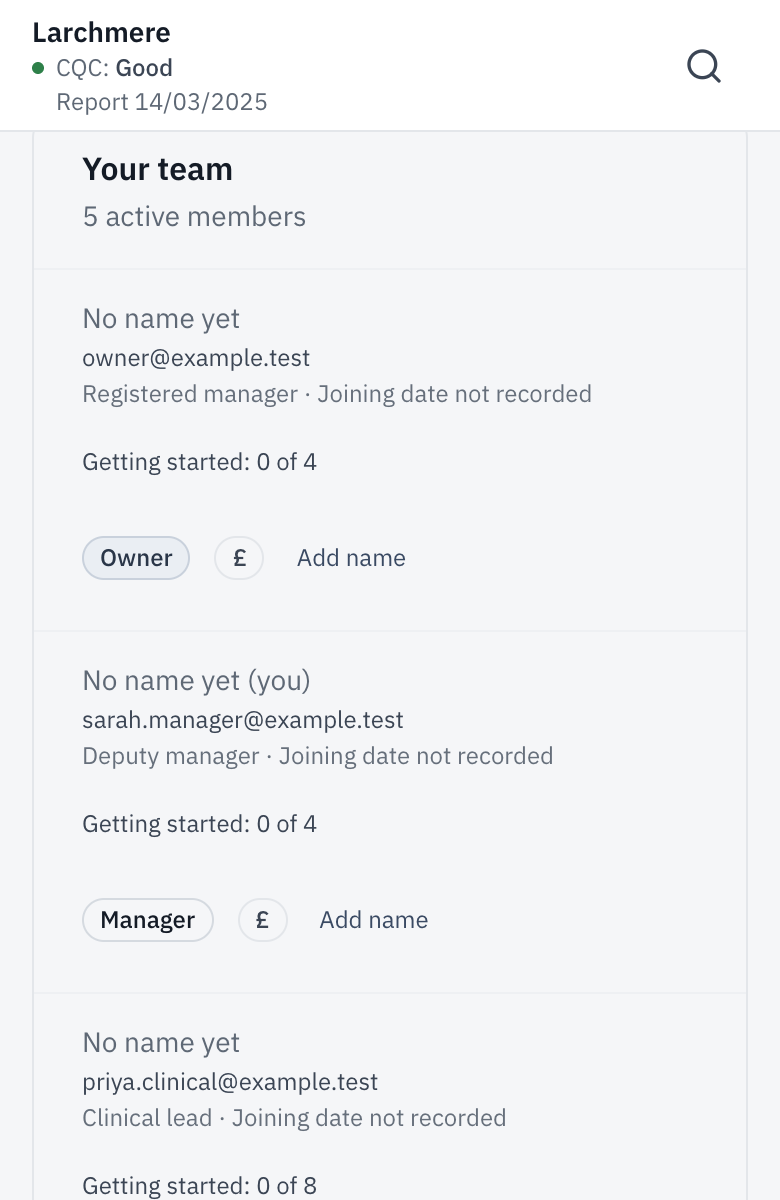
- Open Settings, then Team & access.
- Under each person it says Getting started, and how many of their first steps they’ve done.
- Tap that line to see which steps are done and which aren’t.
Their induction is on their staff file, in Staff Files.
Withdraw an invite
- Open Settings, then Team & access.
- Invites not yet accepted are under Pending invites.
- Tap Revoke beside the one to withdraw. Its link stops working at once.
Only the Owner can withdraw an invite to be a Manager.
Adopt policies
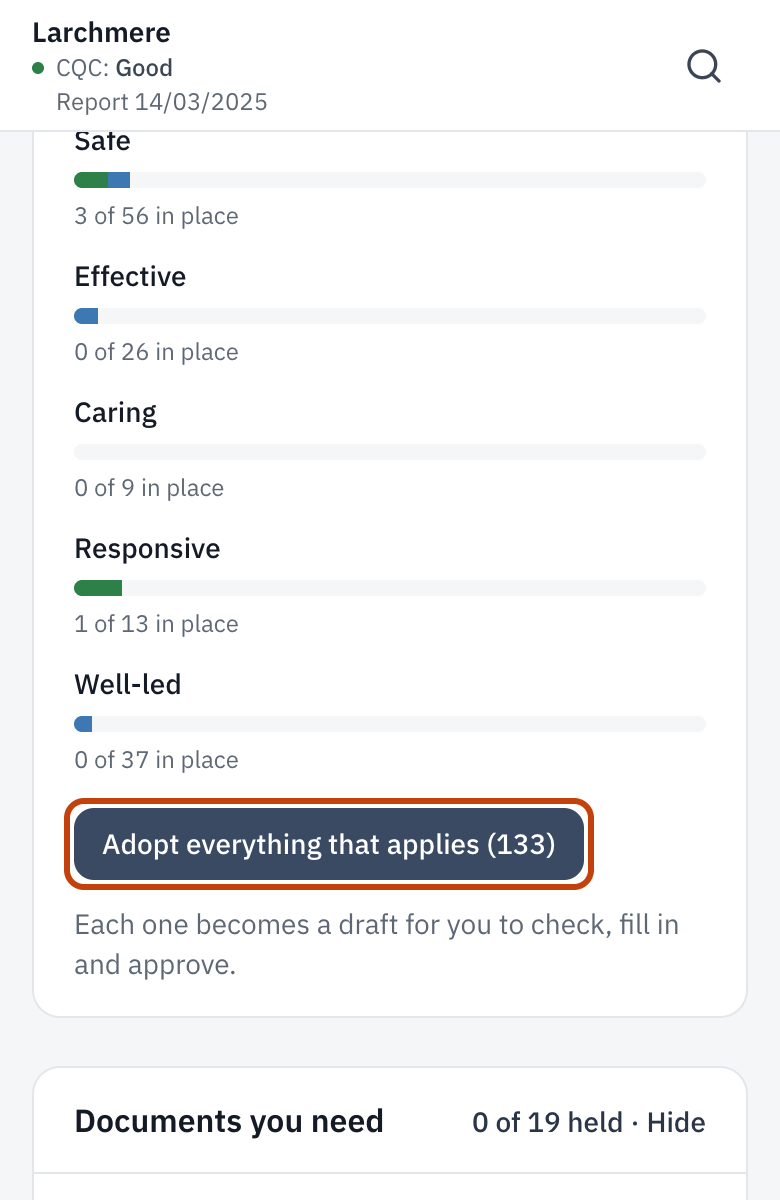
- Open Policies. The ones that apply to your home are listed from your answers about your service.
- Tap Adopt everything that applies, or open one and tap Adopt this policy.
- A policy that doesn’t fit your home: tap Mark not applicable and say why.
- An adopted policy is your draft. Fill in its gaps, send it for approval, and approve it to make it live.
See who has read a policy
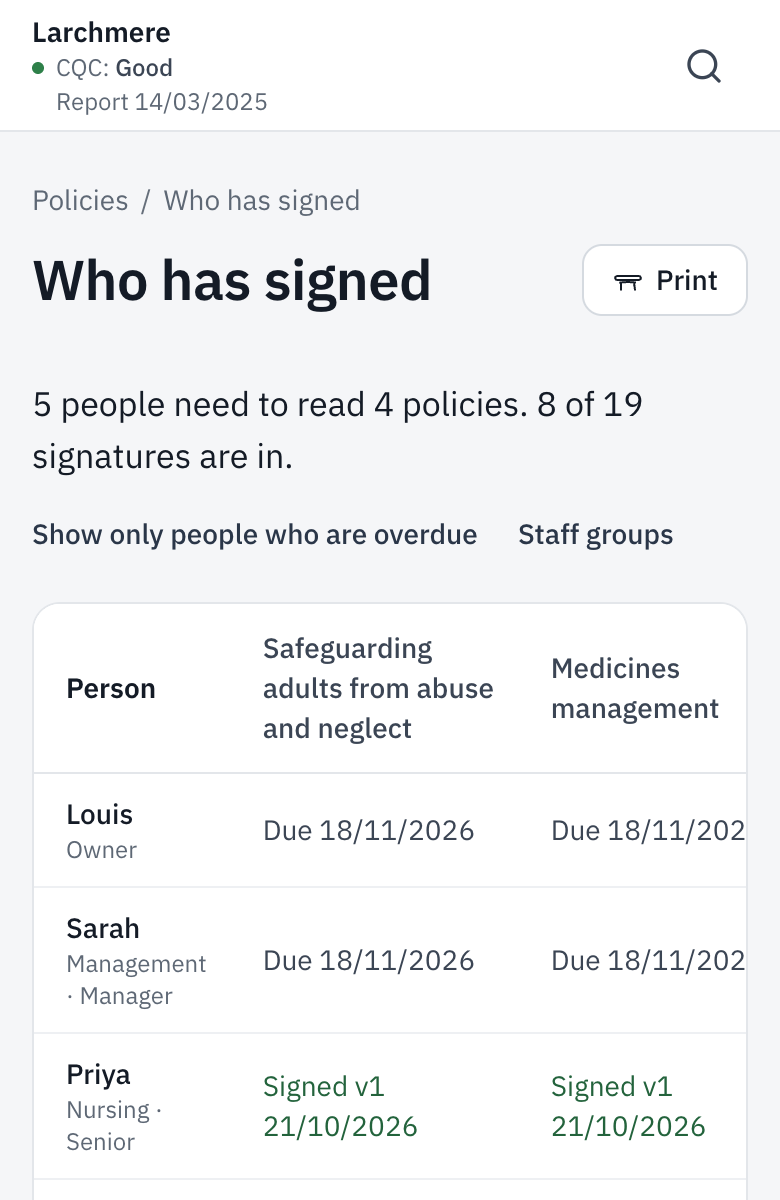
- Open Policies, then Who has signed.
- Each policy shows who has signed it and who still needs to.
- The Inspection report prints the totals. A voided signature shows as Voided, with who voided it, when and why.
Fill in key contacts
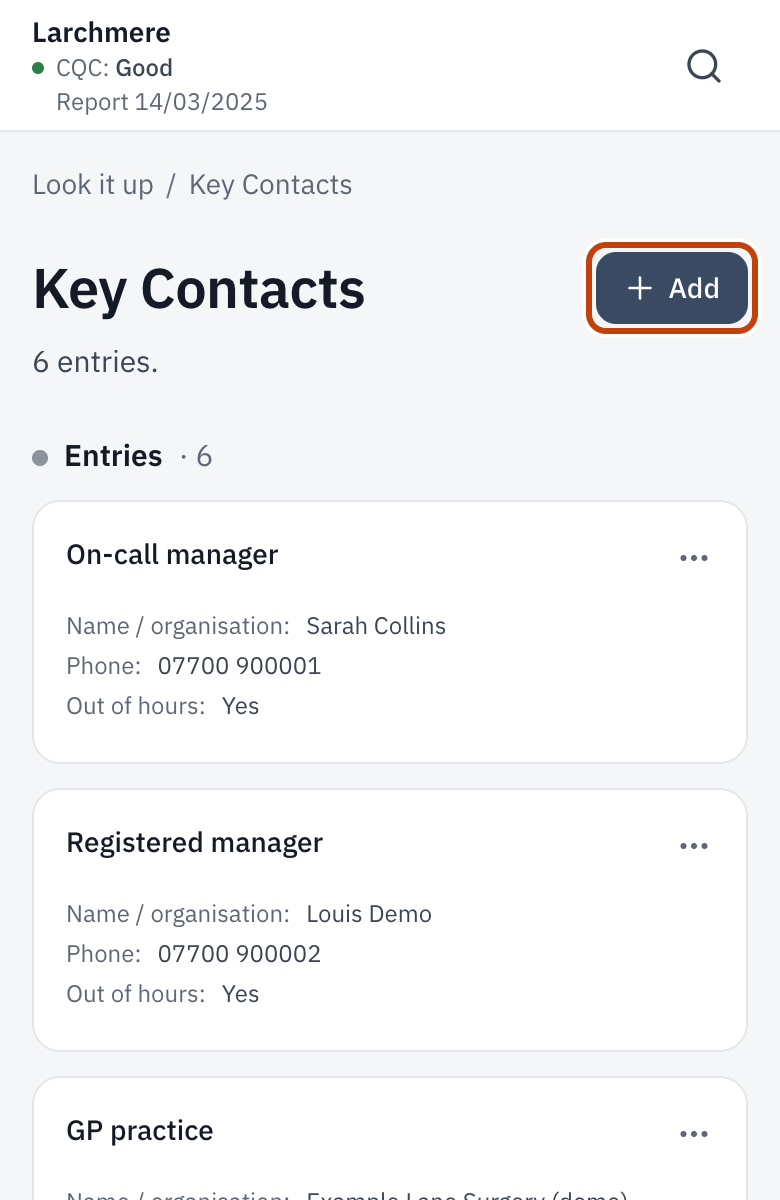
- Open Look it up, then Key Contacts. On a phone, it’s under Menu.
- Tap Add a contact. On a phone the button just says Add.
- Put in who they are, their number and when to ring them, then save it.
- Staff see these numbers on the What do I do if… cards, so start with the ones needed in a hurry.
The business continuity plan reads this list too, so a number changed here changes everywhere.
Find today’s checks
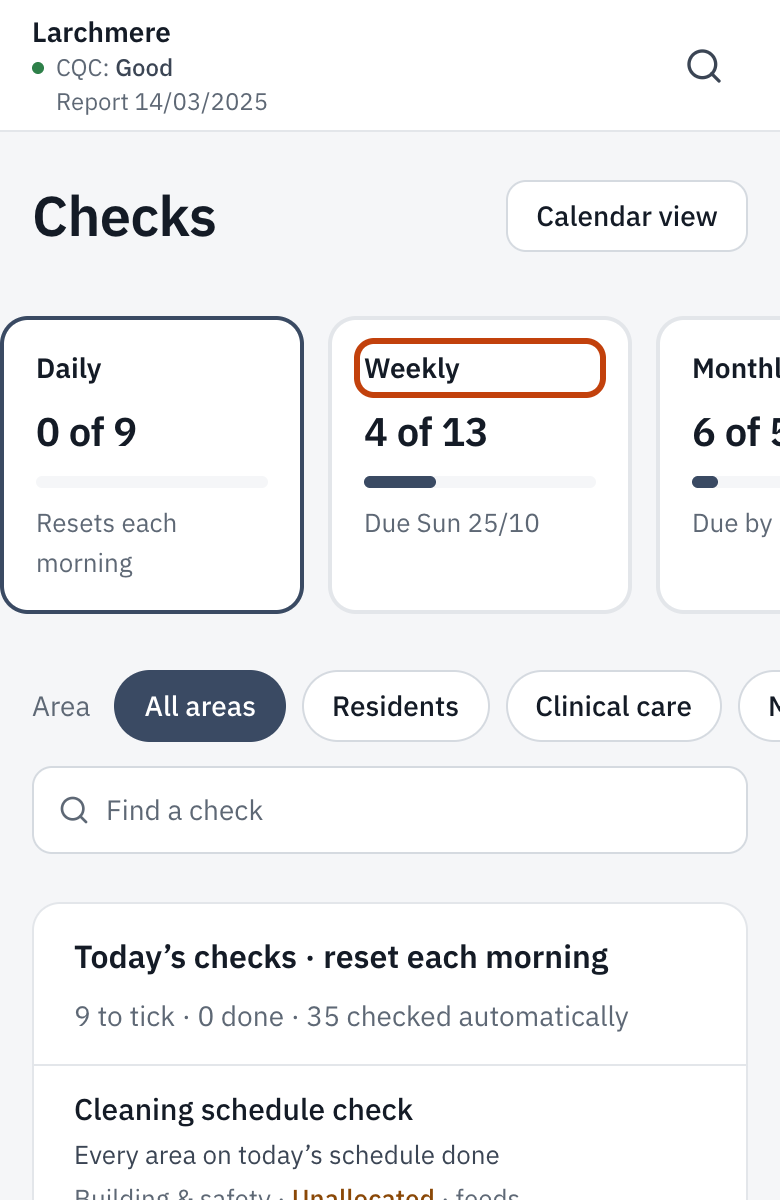
- Open Today. Staff and Seniors see Checks allocated to you. Managers and the Owner see Due today, with every check due across the home.
- Tap Checks in the menu for every check the home runs, with today’s at the top.
- Daily, Weekly, Monthly, Quarterly and Annually sit along the top. Tap one to see those checks.
- Use the area buttons, or Find a check, to narrow the list.
- Anything due today shows on Today as well, so you don’t have to look in two places.
Tick off a check and add a note
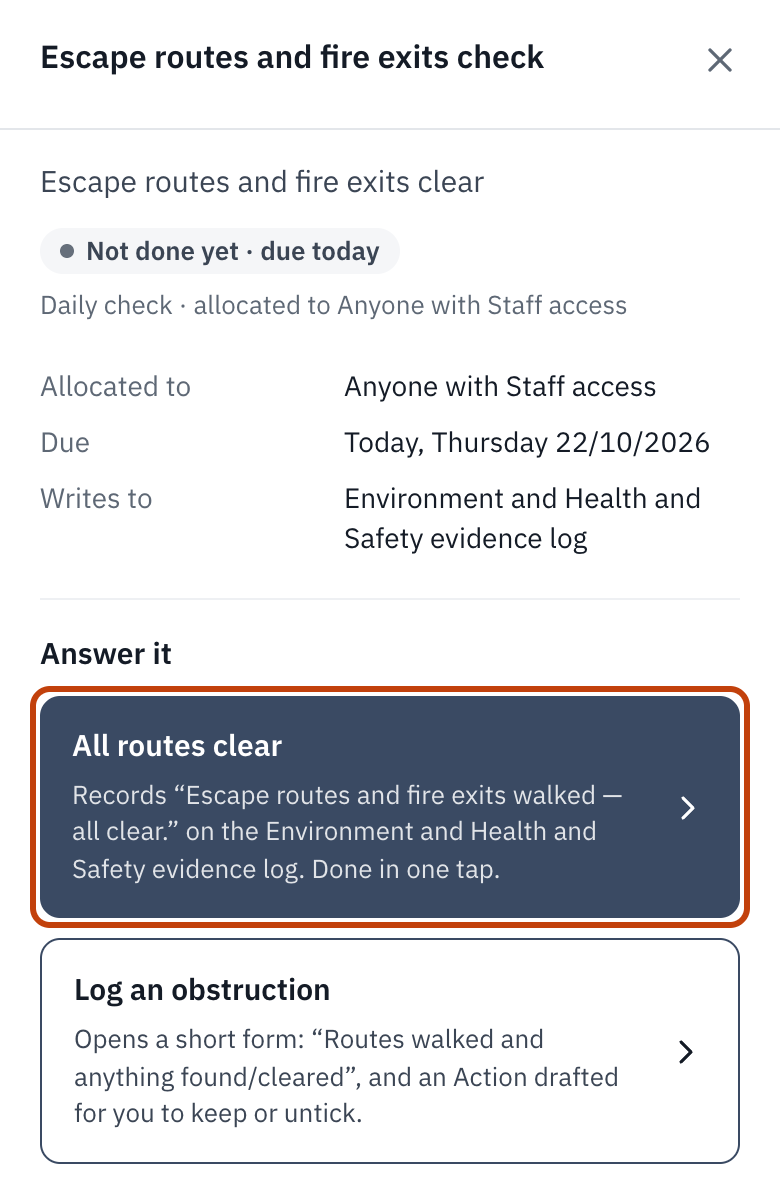
- On Today or Checks, tap Do it beside the check. It opens at the side.
- Under Answer it, if all is well, tap the first answer. That records it in one tap.
- If something’s wrong, tap the second answer and write what you found. It drafts an Action so someone puts it right. Keep it ticked, or untick it if you put it right there and then.
- Tapped the wrong answer? Tap Undo straight away. It shows for about 10 seconds.
- Done it again later the same day? Open the check and tap Add another entry. Use initials for residents, never names.
Check someone’s entry
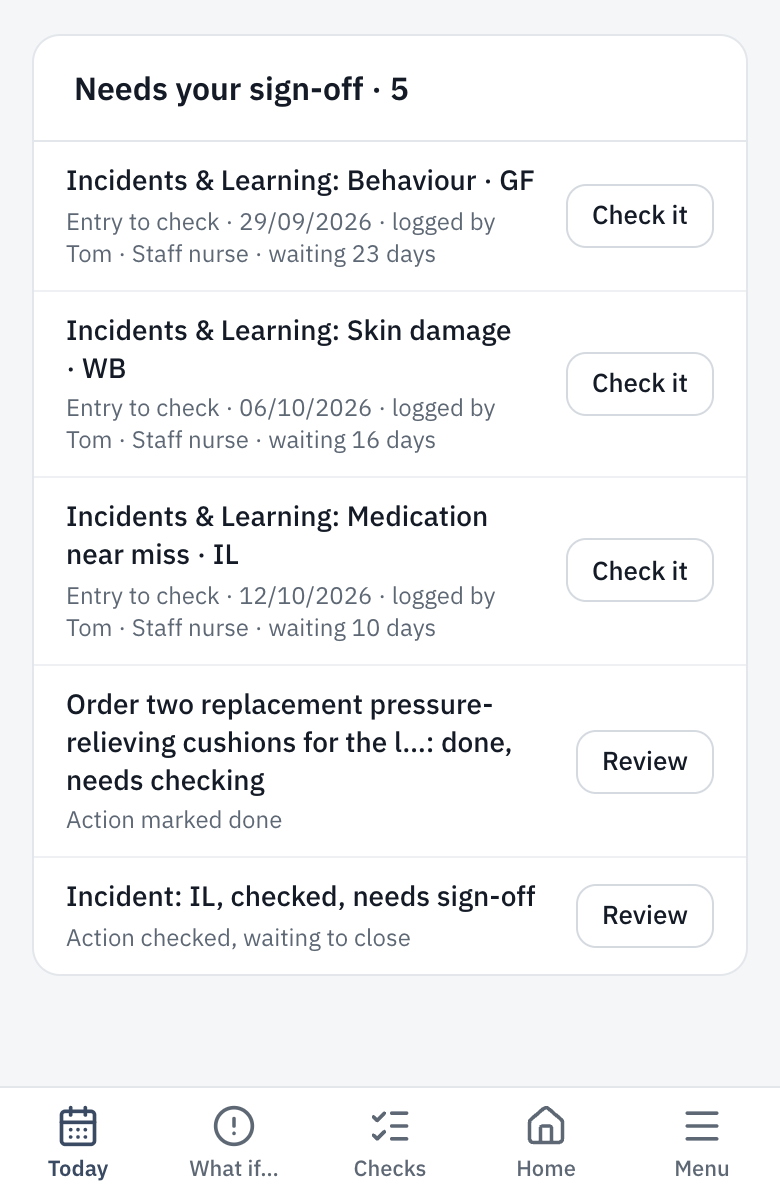
- Anything waiting for you shows on Today under Needs your sign-off.
- Tap Check it, read the entry, and tap I’ve checked this.
- For an Action that’s been done, tap Review and say what you looked at.
- You can’t check your own work. Someone else does that.
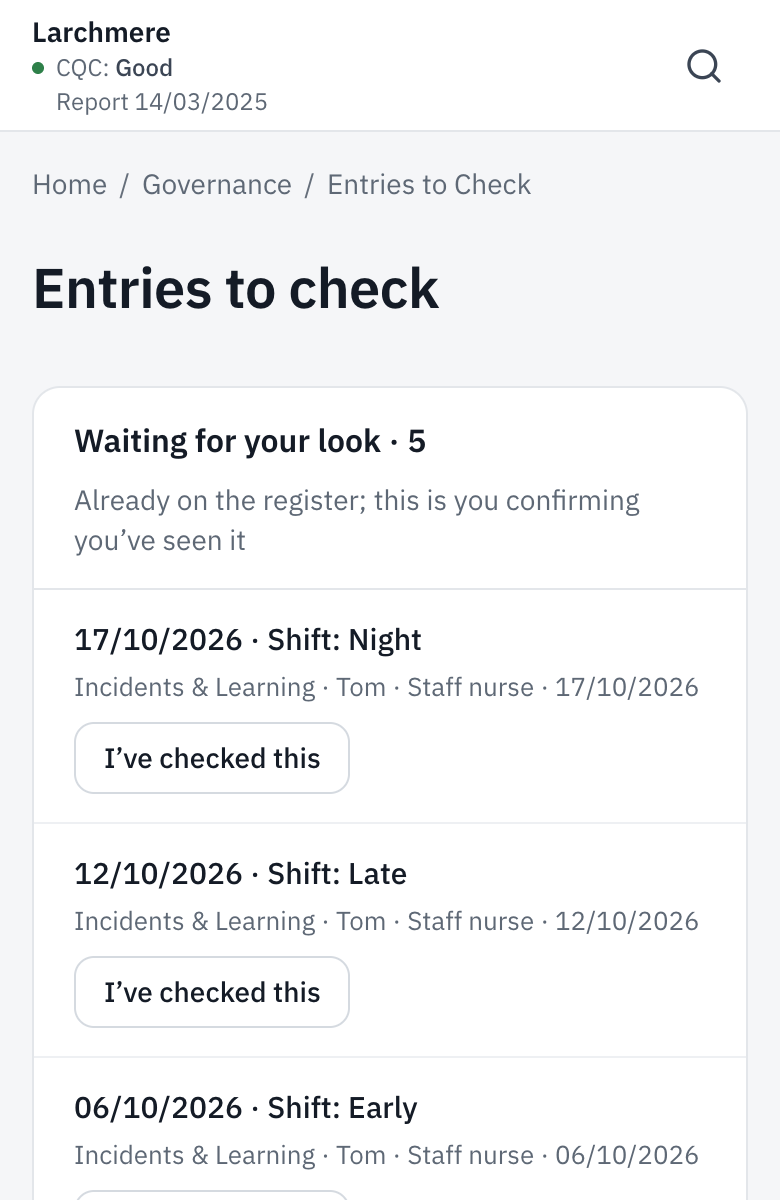
Every entry waiting is listed together under Home, Governance, Entries to check. Each one is already in the register: checking it says you’ve seen it, and whether it needed correcting.
Sign off a checklist
- When someone finishes a checklist, it shows on Today under Needs your sign-off.
- Open it and look through the answers, and any Actions it raised.
- Tap Mark reviewed.
Use “What do I do if…”
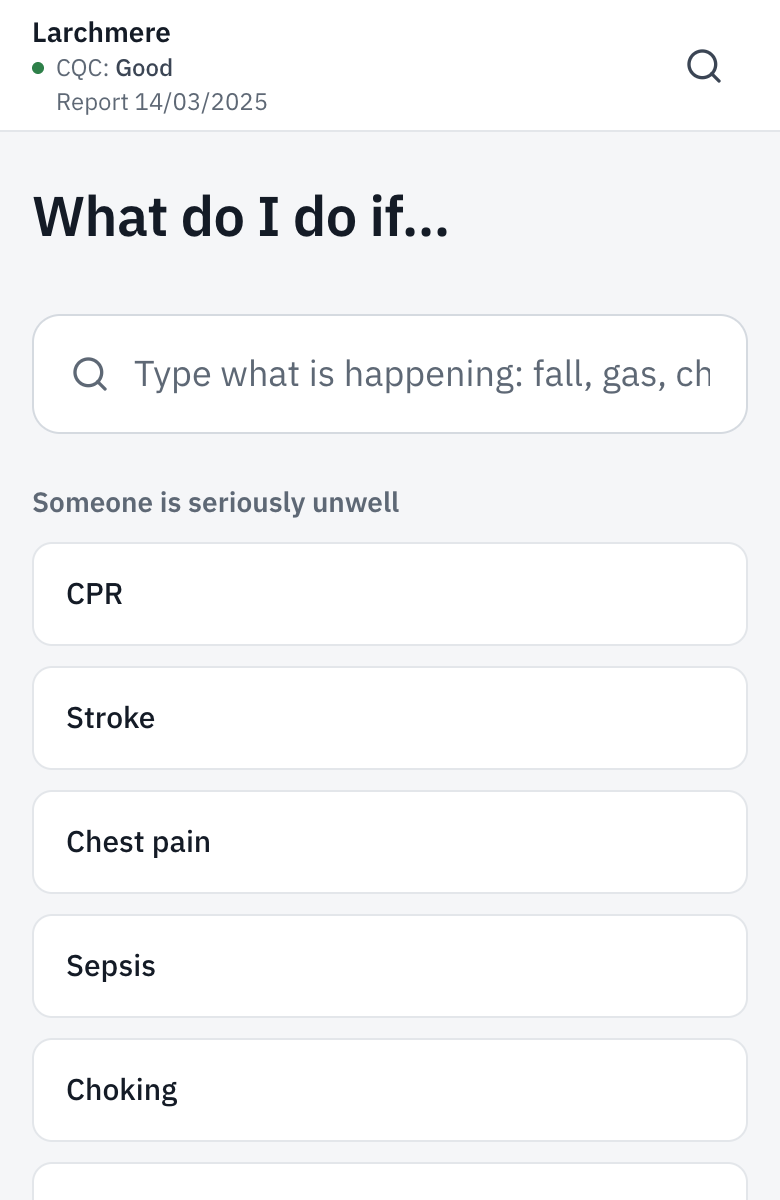
- Tap What if… on the bar at the bottom (on a computer, What do I do if… on the left).
- Find what’s happening. The cards are grouped, starting with someone seriously unwell.
- Open the card and follow the steps in order: recognise, act now, escalate, record, afterwards. The home’s numbers to ring are on it.
In an emergency, call 999 first.
Sign in for the first time
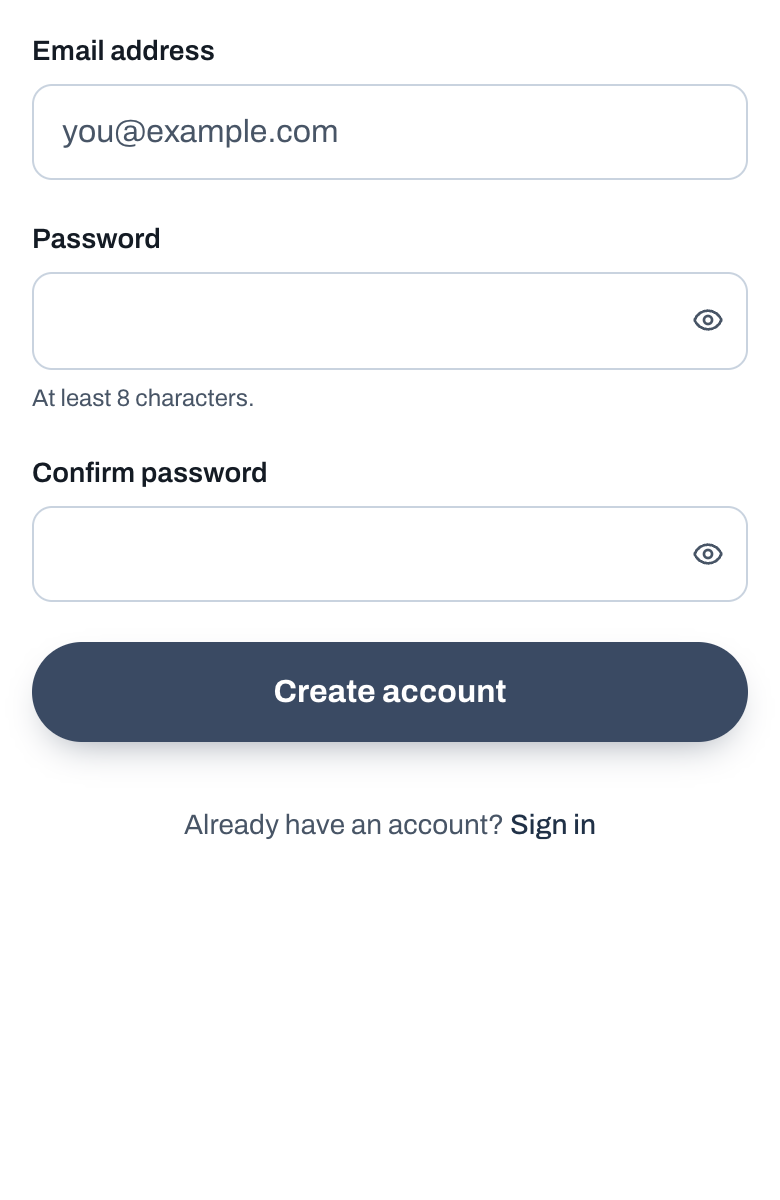
- Open the invite link your manager sent you, by email or message.
- Tap Create account. Check the email address is yours.
- Choose a password, type it again, then tap Create account.
- If it says Check your email, open that email and tap the link in it.
- You land on Today. Next time, sign in with the same email and password.
The invite link lasts 7 days. If it has run out, ask for a new one.
Read and sign a policy
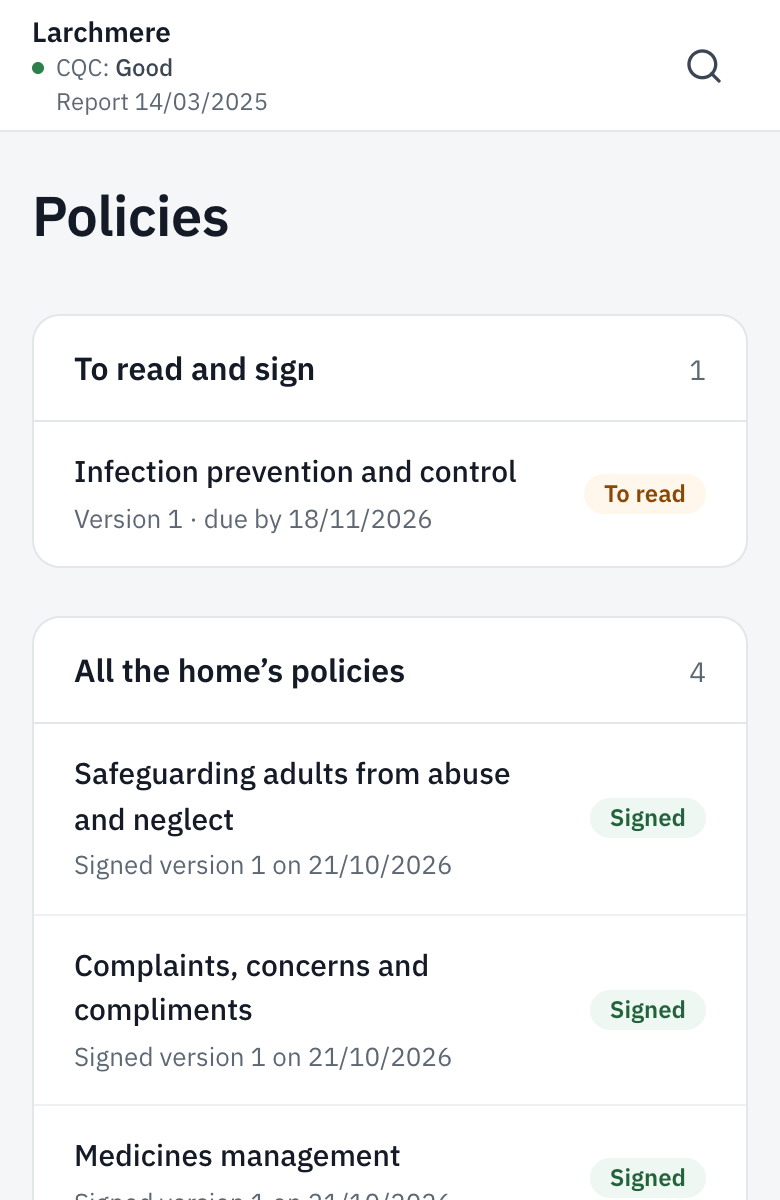
- Open Policies. To read and sign lists the ones waiting for you. Today shows them too.
- Open one and read it all the way through.
- Tick the box to say you’ve read and understood it, then tap Sign.
When a policy changes, it comes back to you to read again.
Change your password
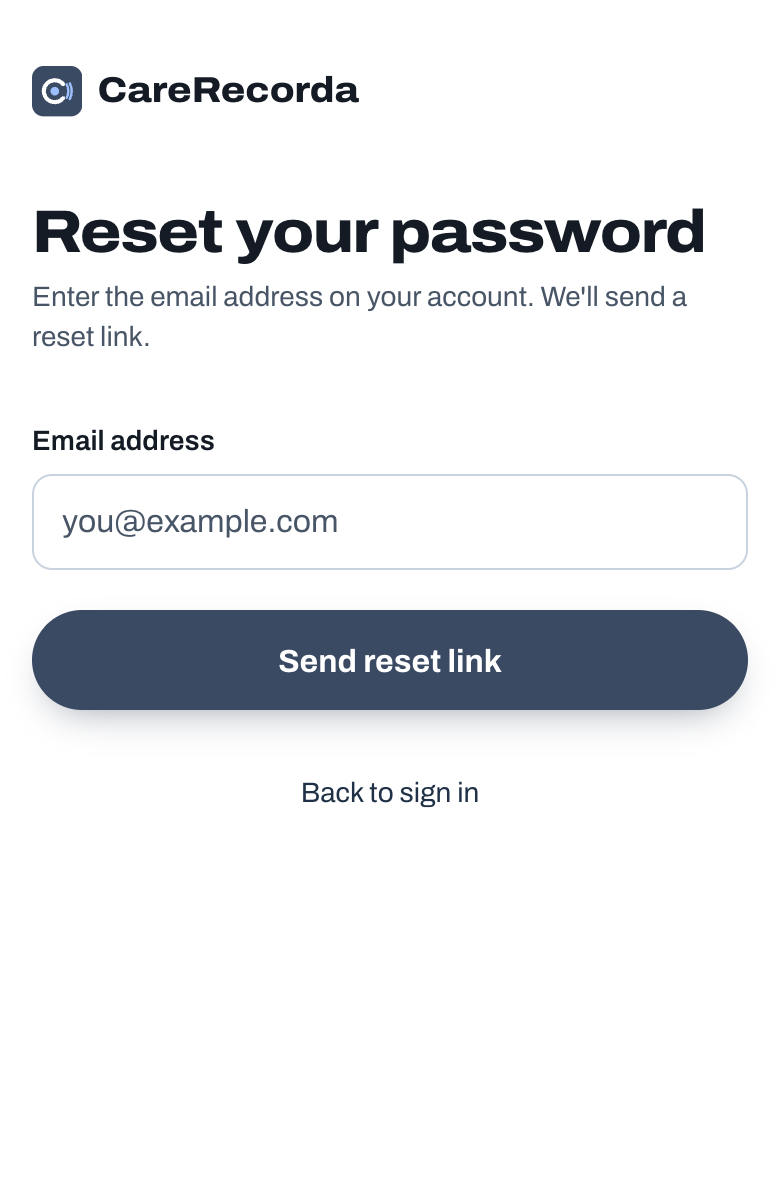
- Sign out. On a phone, Sign out is under Menu, at the bottom. On a computer, it’s under your email at the bottom left. If you only read policies, it’s at the top right.
- On Sign in, tap Forgot your password?
- Put in your email and tap Send reset link.
- Open the email, tap the link, type your new password twice and tap Save new password.
Put the app on your phone’s home screen
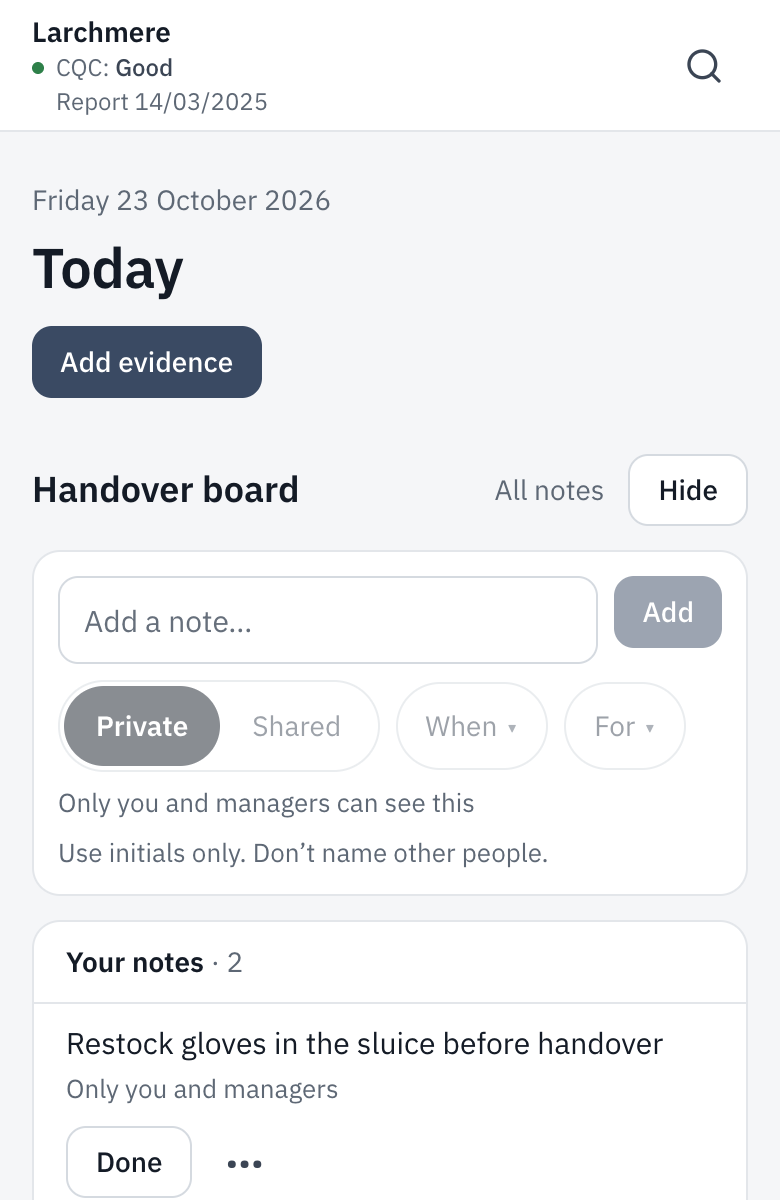
- Sign in on your phone’s browser.
- iPhone, in Safari: tap the Share button, then Add to Home Screen, then Add.
- Android, in Chrome: tap the three dots at the top, then Add to home screen or Install app.
- It opens straight to Today from then on, like any other app.